
Student instructions
Student instructions
6. Assignments and submission
Depending on the settings defined by your teacher, you can submit an assignment either by uploading one or more files or by writing your response directly in the Moodle text editor.
Your teacher will usually set a submission deadline for the assignment. The deadline may be strict, which means that you will no longer be able to submit your work after it has passed.
After the submission deadline, your teacher can provide feedback and assign a grade. You can view the feedback and grade in the same assignment where you submitted your work.
Assignments, exams, and other submissions may be checked using the Turnitin plagiarism detection system. You will automatically receive information and instructions when submitting your work. Your submission will be sent from Moodle to Turnitin for analysis, and once the check is complete, the similarity report will be available to your teacher and, where applicable, to you in Moodle.
Example of an assignment submission:
In this assignment, you can submit both online text and file uploads.
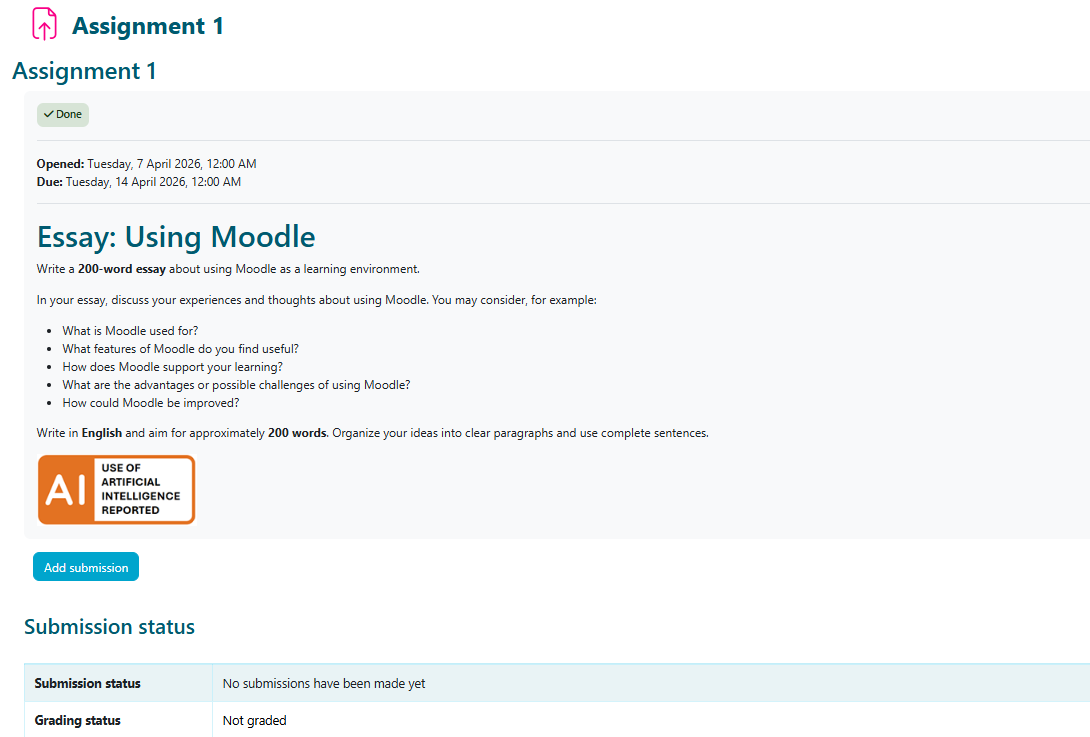
First, select Add submission.
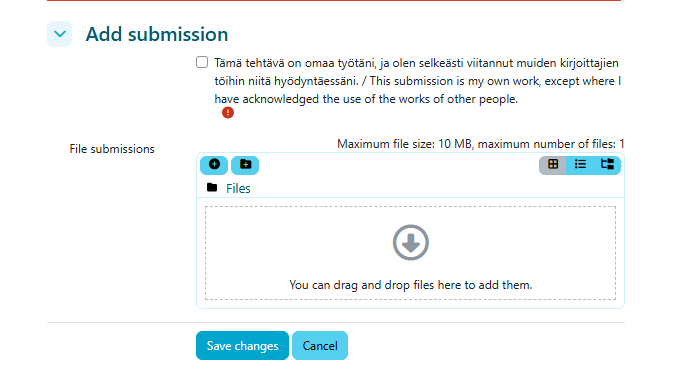
In this assignment, you can submit a maximum of one file with a file size of up to 10 MB. The permitted file formats are listed above the Save changes button. After uploading your file, remember to click Save changes.
After submitting your assignment, you can still edit or remove your submission until your teacher has graded it.
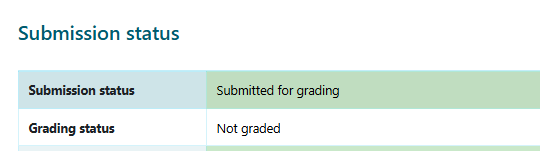
In the Grading status section, you can see whether your assignment has already been graded.