Student instructions
Student instructions
7. Quiz
Please read these instructions carefully before taking a Moodle quiz.
Before the quiz:
- Before you begin, make sure you have a stable internet connection and a quiet place to work.
- Read your teacher's quiz instructions carefully.
- If the course includes a practice or test quiz, try it in advance so that you become familiar with the quiz interface.
Starting the quiz:
Quizzes are often scheduled to open automatically at a specified time.
To begin, click Attempt quiz now. If the button is not visible, refresh the page.
Moodle may experience heavy traffic when a quiz opens. If this happens, wait a moment, refresh your browser, and try opening the quiz again.
If the quiz is timed, Moodle will display the time limit when you click Attempt quiz now and ask you to confirm that you want to start the quiz.
During the quiz:
- Do not close your browser while taking the quiz, as you may lose any unsaved answers.
- If the quiz contains multiple pages, navigate using the Next page and Previous page buttons. These buttons also save your answers.
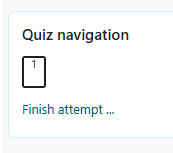
- You can save an unfinished attempt by selecting Finish attempt. If there is still time remaining, you can continue by selecting Return to attempt.
- You can also move between questions using the Quiz navigation panel, if your teacher has enabled this option.
- In a timed quiz, the Time left timer shows how much time remains.
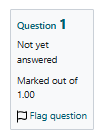
- You can flag questions for later review.
If your internet connection is interrupted during the quiz (e.g. due to a power outage):
Moodle automatically saves your answers every few minutes. Any answers saved before the connection was lost will be preserved, and you can continue your quiz once your internet connection has been restored.
If your connection is interrupted, wait a moment. If nothing happens, refresh the page and reopen the quiz.
You can continue by selecting Continue the last attempt.
Submitting your quiz for grading:
Click Finish attempt to open the Attempt summary page.
To submit your final answers for grading, click Submit all and finish.

Moodle will then ask you to confirm that you want to submit your quiz for grading.
In a timed quiz, the attempt is automatically closed when the time limit expires. After that, you can no longer submit your quiz answers.
If you have not yet submitted your attempt for grading and there is still time remaining, you will see the Continue the last attempt button. In the attempt summary, the status will be shown as In progress.
Once you have submitted your answers for grading, the attempt status will change to Submitted.
After the quiz:
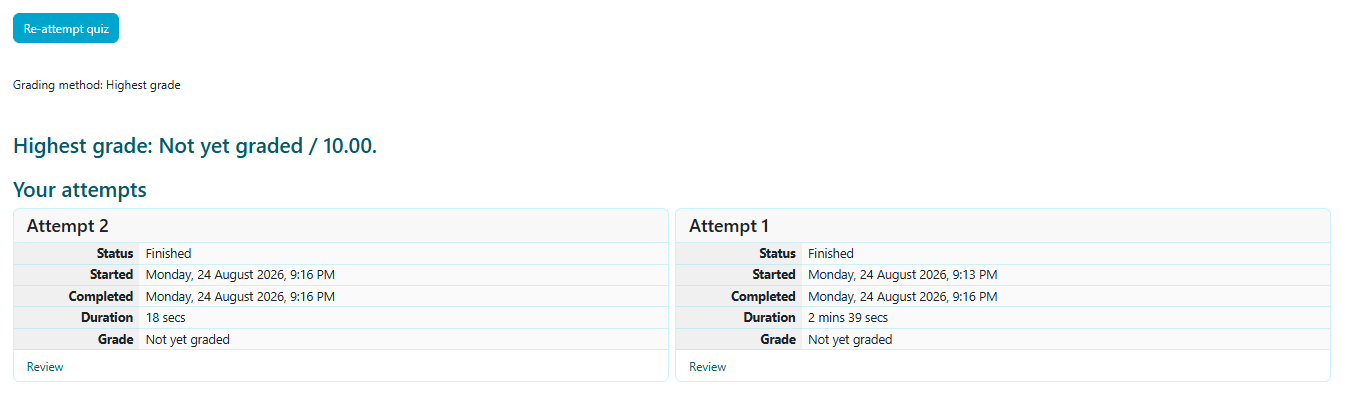
You can review your quiz results by returning to the quiz or by selecting Grades.
Depending on the settings defined by your teacher, you may be able to view:
- your quiz score and grade in the Summary of your previous attempts section
- by selecting Review, you may also be able to view the quiz questions, your answers, the marks awarded for each question, and any feedback provided by your teacher.