
Student instructions
Student instructions
6. Assignments and submission
6.2. Using PoodLL in an assignment
PoodLL is a tool for recording audio and video directly in Moodle.
PoodLL works best with Google Chrome and Mozilla Firefox. Some older Mac computers may experience compatibility issues. If you encounter problems, try using a different web browser.
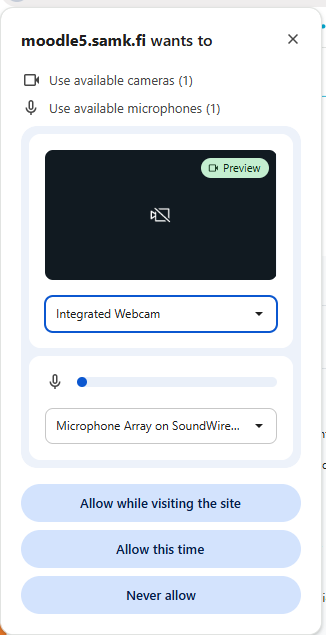
Please note: When you start recording, allow PoodLL to access your camera and microphone by selecting Allow in your browser. Also make sure that you have selected the correct camera and microphone from the drop-down menus. A USB headset with a microphone is recommended for the best audio quality.
In an assignment, PoodLL is integrated into the standard assignment submission process. To begin, select Add submission.
In the window that opens, you will find the PoodLL recorder.
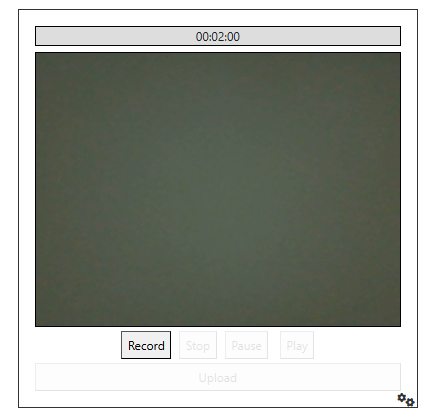
Before you start recording, make sure that your video is visible in the preview window.
Start recording by selecting Record. Please note that the Pause/Continue function is currently not available. If you click Pause, you will not be able to resume the recording.
When you finish recording, click Stop. You can preview your recording by selecting Play. Alternatively, you can create a new recording by selecting Record. A new recording will replace the previous one.
Once you are satisfied with your recording, upload it to the server by selecting Upload. When the upload is complete, the message "Uploaded successfully" will be displayed.
Finally, click Save changes. You can then view the status of your submission. Please note that converting the recording may take some time, depending on its length.
Once the video has been processed, it will appear in the submission window like any other video. If you want to make changes to your submission, select Edit submission to return to the recording page.